PDF Document Scanner - PixScan
- 4.7
- Rating
- 5.00M
- Installs
- Free
- Price
 Analysis by App-foxy
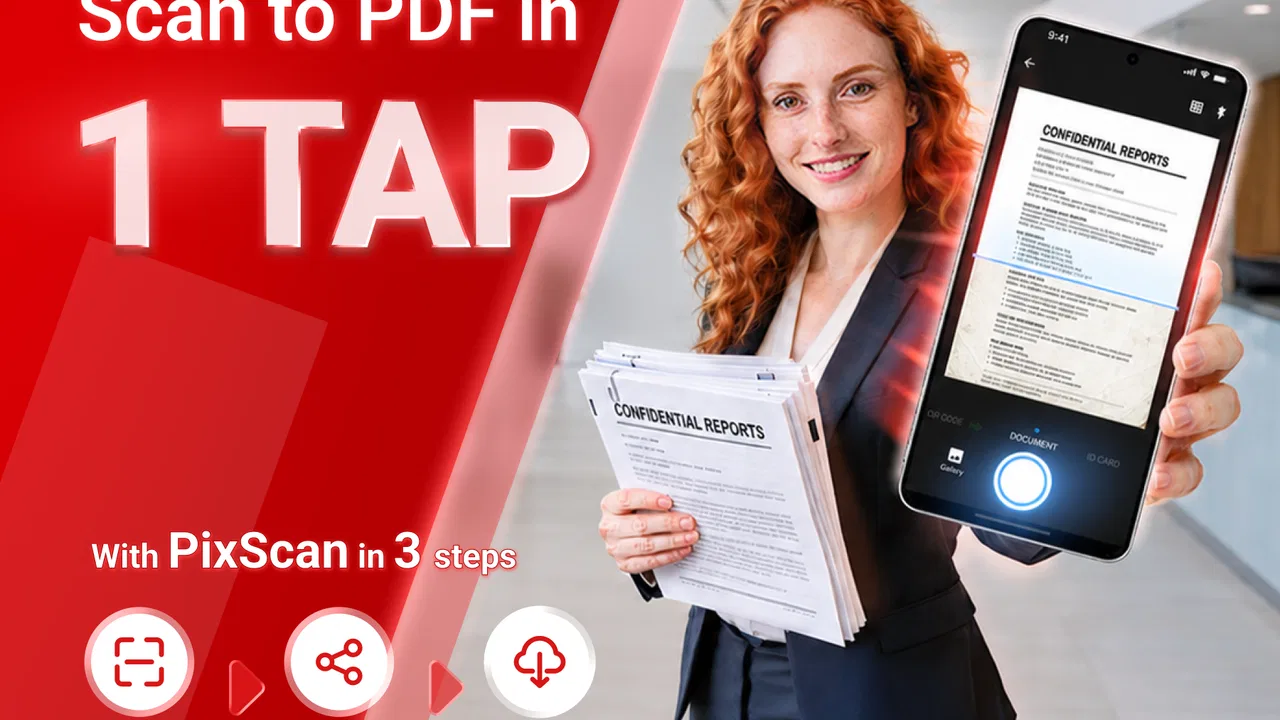
I use document scanners when I need to turn a paper receipt, signed form, or handwritten note into something I can actually send, save, and find later. PDF Document Scanner - PixScan is built for that everyday job, with an AI-assisted approach aimed at office paperwork and quick photo-to-PDF conversion. After spending time with it, I see the appeal: it is more focused than a general camera app, but it is not automatically the best choice for every scanning routine.
The app comes from Eco Mobile for Work and sits in the productivity category. It is free to install, rated for Everyone, and works on Android devices running version 8.0 or later. Its current release is 4.2.6. The free entry point makes it easy to test without committing money first, while optional in-app purchases range from $1.99 to $49.99 per item. That wide purchase range is worth keeping in mind because “free” and “best value” are not always the same thing.
How PixScan fits into real document work
I find it useful to judge PixScan by the handoff, not just by the moment a page becomes a PDF: can I check what I captured, then place it where the next task actually happens? That framing helps separate a quick capture tool from a full filing system. The next section looks at the small setup checks that can prevent avoidable trouble before the first scan.
You May Also Like

 Blood Strike: 2.5 Anniversary
Blood Strike’s Loadouts Turn Every Drop Into a Tactical Gamble
A close look at Blood Strike’s custom loadouts: how fast access to signature weapons reshapes its battle royale rhythm, rewards preparation, and narrows the gap between fights.

 Pandora - Music & Podcasts
Pandora’s Music Is Easy to Start, but Harder to Recover
Pandora’s strength is its low-effort path from a seed to a station. Its weak spot is how much confidence it asks you to place in connection, setup, and quiet recovery.

 8 Ball Pool
 Is Built on Rivalries, Rematches, and Routine
A close look at the rivalries, rematches, shared routines, and unanswered safety questions that turn a quick pool match into a persistent mobile community.

 Samsung Music
’s Quiet Strength Is Playing What You Already Own
Its reach comes less from spectacle than from dependable access to a personal library. That simplicity is both the app’s strongest retention engine and its ceiling.

 AccuWeather: Weather Radar
AccuWeather Review: A Quick, Clear Forecast for Everyday Decisions
For everyday plans, the best forecast is the one you can understand quickly. AccuWeather makes rain timing, radar, and local conditions easy to act on, with a few trade-offs.

 Hill Climb Racing
Why Hill Climb Racing Still Turns Crashes Into One More Run
A tiny car, a bumpy hill and one more upgrade: Hill Climb Racing keeps resurfacing because its simple chaos makes every near-miss feel personal.
More From Our News Desk



A practical scanner for quick paperwork
My first impression is that PixScan makes sense when the phone is already in my hand and the paper is in front of me. Instead of taking an ordinary photograph and later trying to fix perspective, brightness, and readability in another app, I can treat the task as a scan from the beginning. That change sounds small, but it encourages a better workflow: capture the page, check the result, add more pages if needed, and create a PDF while the document is still organized.
The AI angle is most useful when it reduces the amount of manual correction I have to do. A scanner app should help separate the page from the surrounding desk, make text easier to read, and produce a document that looks deliberate rather than like a casual snapshot. I would still inspect every page before sharing it, especially when a form contains small print, faint pencil marks, stamps, or signatures. Automation is helpful here, but it should be treated as an assistant rather than a guarantee.
That distinction matters because a readable scan is not always a faithful scan. Strong enhancement can make printed text stand out, but it may also change the appearance of delicate marks or low-contrast details. For a routine office memo, that may be fine. For a signed contract, tax document, medical paper, or identity-related form, I would compare the processed page with the original before relying on it.
The everyday scenario where it earns its place
Imagine leaving a meeting with a paper action sheet, two receipts, and a form that needs to be emailed before the end of the day. With a standard camera, I would probably photograph each item, crop them later, and wonder whether the recipient could read the corners. PixScan is better suited to handling that moment as a document task. I can capture each page deliberately, review the edges, and assemble the result into a PDF instead of sending a loose group of images.
I also find this approach useful for temporary paperwork. A school notice, delivery slip, repair estimate, or handwritten instruction may not deserve a permanent filing system, but it can still be useful as a clean PDF for a few weeks. The app becomes a bridge between physical paper and the digital tools I already use for email, cloud storage, messaging, or project folders.
For small businesses and freelancers, that bridge can remove a surprising amount of friction. A receipt photographed at the end of a purchase is easier to locate when it is saved as a document rather than buried among unrelated camera images. The important habit is to name or organize the resulting files immediately. PixScan can help create the document, but it cannot replace a sensible filing routine.
What the free starting point really means
The app is free to download and use as an entry point, which is a meaningful advantage for someone who only scans occasionally. If I need a PDF once in a while, paying nothing upfront makes it easy to see whether the capture process suits my phone, my documents, and my preferred way of sharing files.
At the same time, the presence of optional purchases means I would not assume every useful part of the experience is included without cost. The listed purchase range begins at $1.99 and reaches $49.99 per item, so the financial value depends on what a particular user needs and which paid options appear in the app. I would check the purchase screen carefully before confirming anything, especially if I am installing it for occasional personal use rather than regular office work.
That creates two different value judgments. For light scanning, the free access may be enough to justify keeping PixScan installed. For frequent professional use, paid features could be worthwhile if they remove repeated limitations, but I would only call that good value after confirming exactly what each purchase unlocks. The app’s price structure alone does not prove that the highest-priced option is necessary, and most casual users should avoid paying simply because a premium prompt appears.
Where it is stronger than the usual camera workaround
The obvious alternative is the phone’s camera app. It costs nothing extra and is already familiar, but it treats a document like any other image. That means the user is responsible for framing, correcting perspective, improving contrast, cropping the edges, and converting the final images into a PDF. PixScan is more specialized because the desired outcome is a document, not merely a photograph.
A general note-taking app can also be a reasonable alternative, particularly for someone who wants scans connected directly to handwritten notes, checklists, or project pages. The trade-off is that a note system may be less convenient when the only goal is to produce a clean PDF quickly. PixScan’s narrower purpose is a benefit when speed and document output matter more than building a larger knowledge base.
Dedicated office suites may be preferable for people who already work inside a broader document ecosystem. If scanning is only one small part of a workflow involving editing, collaboration, signatures, and long-term storage, adding a separate scanner app may create another place to manage files. PixScan makes more sense when the scan itself is the main task and the finished PDF can then move into the user’s existing system.
Three habits that improve the results
My first practical tip is to scan on a stable, contrasting surface rather than holding a page in midair. The app can assist with document capture, but a flat sheet with visible borders gives any automatic edge detection a better chance of working cleanly. Even a small amount of preparation can save more time than trying to repair a crooked page afterward.
Second, I would review the corners and the smallest text at full size before exporting. A page can look fine in a thumbnail while losing a signature, a checkbox, or a line at the edge. This is particularly important when scanning multi-page forms, because one defective page can undermine an otherwise good PDF.
Third, I would separate capture from archiving. Scan the document first, confirm that the PDF is complete, and then place it in a clearly named folder or send it to the intended recipient. Keeping dozens of unnamed scans inside the app defeats much of the organizational benefit. The strongest workflow is not just “paper to PDF”; it is “paper to correctly labeled PDF in the right destination.”
Limits I would want users to understand
PixScan is not a replacement for a flatbed scanner in every situation. A physical scanner remains preferable for books, delicate originals, large batches, and work where consistent color or exact reproduction matters. Phone scanning is convenient, but lighting, shadows, curved pages, camera quality, and the user’s angle still affect the result.
I would also be cautious with documents that require more than visual conversion. A PDF made from photographed pages may be easy to read without being fully editable or searchable in the way a text-native document is. The app’s purpose is clearly centered on scanning and PDF creation, so users who need advanced document editing, structured data extraction, or complex collaboration may need another tool after the scan.
Another trade-off is dependence on the phone workflow. A small screen is fine for a few pages, but checking a long packet, correcting repeated captures, or verifying tiny text can become tiring. For a large office archive, a desktop scanner or a more comprehensive document-management setup may be more efficient. PixScan is at its best when convenience outweighs the need for industrial consistency.
Who is most likely to get good value?
I would recommend trying it to students, renters, freelancers, home-office workers, and anyone who regularly receives paper but wants a quick digital copy. It is especially suitable for people who do not want to learn a complicated scanning system. The free starting point lowers the risk of testing it with a few ordinary pages before deciding whether it deserves a permanent place on the phone.
It can also help families manage practical paperwork. A parent might scan a permission form, a household warranty, or a school document, then share the PDF without sending a blurry image. Someone handling a move could digitize temporary records as boxes are packed. These are not glamorous tasks, but they are exactly where a focused scanner can save time.
Businesses should judge it more carefully. A small operation with modest scanning needs may find the convenience worthwhile, particularly if staff members already use their phones as work tools. A larger team with strict document retention, centralized access, or high-volume scanning should compare it with a managed office solution before standardizing on it. The app may be a useful capture tool without being a complete records system.
Who should skip it?
I would skip PixScan if I rarely handle paper and already have a camera workflow that meets my needs. Installing another utility is not automatically an improvement when the occasional photo is sufficient. I would also look elsewhere if I need advanced editing, guaranteed optical character recognition, detailed collaboration controls, or a full archive with tightly managed permissions.
Users who scan sensitive documents should take a moment to consider their own comfort with any mobile scanning workflow before processing important material. I would avoid scanning highly confidential pages casually, especially on a shared device or when I have not decided where the resulting files will be stored. The convenience is real, but convenience should not replace careful handling.
My final buying decision
PixScan is a sensible free-to-try productivity app for turning everyday paper into PDFs without making the process feel like a technical project. Its strongest quality is focus: it addresses the moment when I need a document, not just a picture. The AI-assisted capture can reduce manual cleanup, and the workflow is more purposeful than relying on the ordinary camera.
Its value becomes less certain when scanning is occasional, when documents demand archival precision, or when the user needs a complete editing and collaboration suite. The optional purchases also deserve a deliberate look because the available paid items span from $1.99 to $49.99, making it important to match spending to actual needs rather than assume every upgrade is essential.
The app has built a substantial audience, with a 4.7 average from around 39 thousand ratings and over 5 million installs. Those figures suggest that the basic idea works for many people, but they should not replace a personal test with your own paperwork. I would install it, scan several different pages, inspect the edges and fine print, and only then decide whether any paid option earns its place.
My verdict is to try it if you want a straightforward phone-based PDF scanner, while keeping expectations realistic about advanced document work. For receipts, forms, notices, and small batches of office pages, it can be a useful everyday tool. For high-volume archiving or demanding professional workflows, I would compare it with a dedicated scanner and broader document software before paying for anything.
In short, PDF Document Scanner - PixScan delivers the most value when speed and convenience matter more than a complete paper-management system. I would recommend the free starting point to people who want cleaner PDF results than the camera app usually provides, but I would make the final decision based on the quality of my own scans and the exact benefit of any optional purchase.
FAQs for PDF Document Scanner - PixScan
01What is PDF Document Scanner - PixScan used for?
PDF Document Scanner - PixScan is designed to turn your phone or tablet into a portable document scanner. You can capture receipts, contracts, notes, forms, business cards, and other paper documents with the camera, then save them as digital files. It is especially useful for organizing paperwork, sharing documents quickly, and keeping readable copies available without carrying the originals.
02Does PDF Document Scanner - PixScan create searchable PDF files with OCR?
The app may provide text-recognition features depending on the installed version, device compatibility, and the tools included in its current release. OCR can make scanned documents easier to search or edit, but results depend heavily on image quality, lighting, handwriting, and the language used. Before relying on it for important records, check the app’s feature list and test recognition with your own documents.
03Is PDF Document Scanner - PixScan free to download and use?
PDF Document Scanner - PixScan can generally be downloaded from the relevant mobile app store, but availability of features may depend on the app’s pricing model. Some scanner applications include advertising, optional subscriptions, or in-app purchases for premium tools such as advanced exporting, OCR, cloud storage, or removing limitations. Review the store listing carefully before subscribing, especially if you only need basic scanning.
04How good are the scans produced by PDF Document Scanner - PixScan?
Scan quality is usually suitable for everyday paperwork when documents are placed on a flat, contrasting surface and photographed in bright, even light. Automatic edge detection and image enhancement can improve readability, but they cannot fully correct blurry photos, shadows, folds, or heavily damaged pages. For official submissions, review every page at full size and confirm that small text, signatures, and numbers remain clear.
05Are documents scanned with PixScan private and secure?
You should review PixScan’s privacy policy and the permissions requested by the app before scanning confidential material. Documents may remain locally on the device, but features such as cloud backup, sharing, synchronization, analytics, or online OCR can involve data transmission. Avoid scanning highly sensitive records until you understand how files are stored, whether they are encrypted, and how to delete them permanently.
Pros
- Scans documents quickly using the phone’s camera.
- Automatic edge detection helps create clean
- professional-looking pages.
- Supports multi-page documents in a single PDF file.
- Useful image adjustments improve readability of scanned text.
- Simple interface makes it accessible for first-time users.
Cons
- Scan quality depends heavily on lighting and camera focus.
- Some advanced tools may require a subscription or in-app purchase.
- OCR accuracy can vary with handwriting
- fonts
- and poor-quality originals.
- Large multi-page scans may take noticeable storage space.
- Privacy policies should be checked before scanning sensitive documents.

PDF Document Scanner - PixScan
Gallery